
July 14, 2026 · 8 min read
How to Compress a PDF Without Losing Quality (Free, No Sign-Up)
A practical, no-nonsense guide to shrinking PDFs for email and upload — how compression works, when to use lossy vs lossless, and step-by-step in your browser.
Every workflow eventually runs into it: your PDF is 42 MB, the upload form caps at 10, and the deadline is in ten minutes. The good news is that most oversized PDFs are only oversized for one or two very fixable reasons — and you don't need Acrobat Pro, an installer, or an email address to fix them.
This guide walks through why PDFs get big, the difference between lossless and lossy compression, and the exact steps to shrink one in your browser with the Compress PDF tool. It also covers what to do when a PDF refuses to shrink — usually a sign that the file needs a different tool entirely.
Why file size actually matters
PDF size isn't only about email attachment limits. Larger files upload slower on flaky connections, cost more bandwidth on mobile plans, and are markedly worse for accessibility — screen readers and low-power devices stall on massive documents. A 30 MB contract that could be 3 MB isn't just inconvenient; it's a small tax on every recipient.
There are also hard limits worth remembering. Gmail refuses attachments over 25 MB. Most contact forms cap uploads at 5–10 MB. Government portals often draw the line at 4 MB per document. When your PDF crosses one of those thresholds, the fix is compression — not splitting the file into pieces and hoping the reviewer stitches them back together.
Lossless vs lossy: which do you actually want?
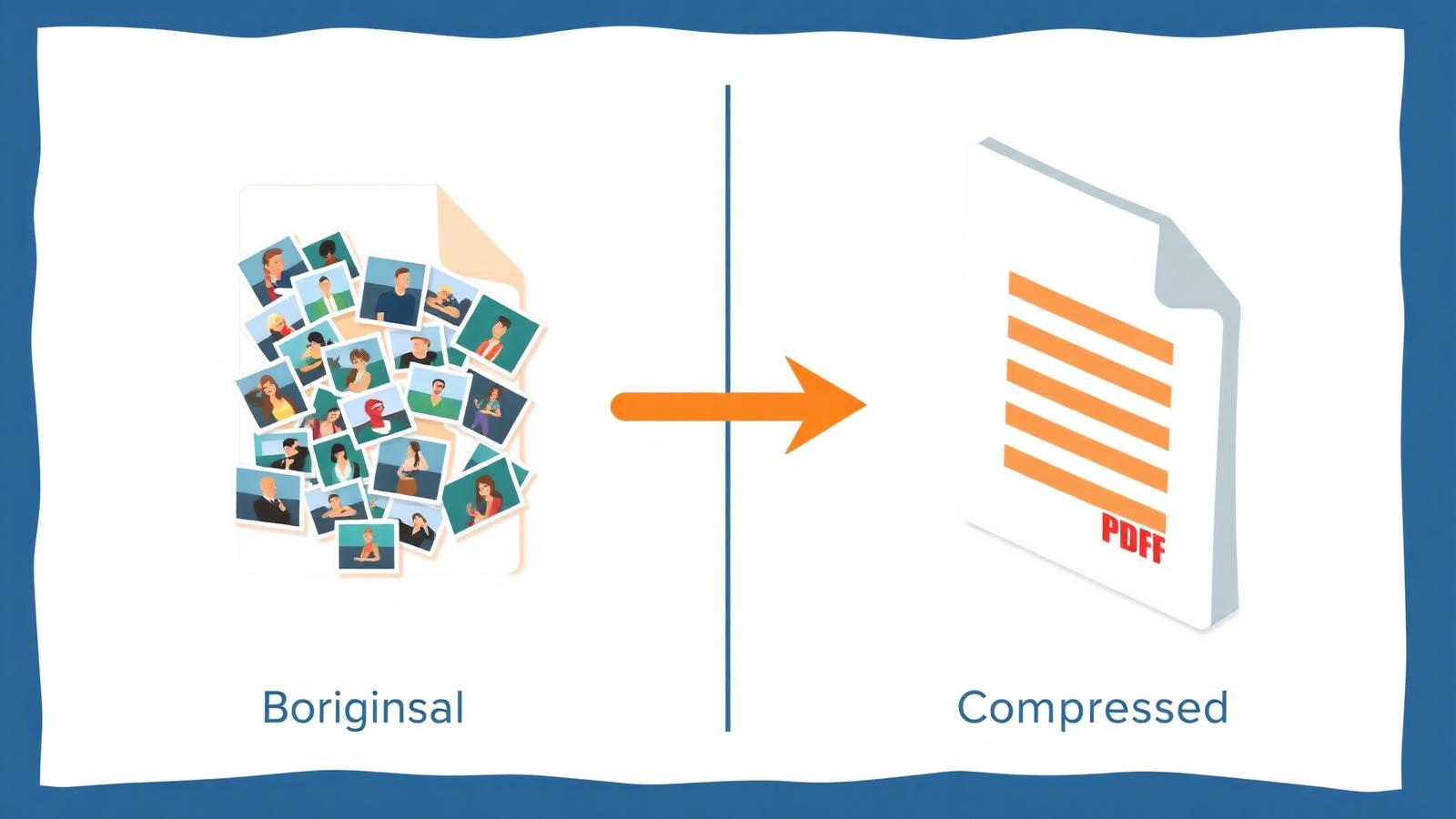
Lossless compression rewrites how the PDF stores data without discarding anything. Streams get re-packed with better algorithms, fonts get subset, duplicate objects get merged. You keep every pixel of every image and every kerning decision. The trade-off is modest savings: 10–30% on a typical document.
Lossy compression targets the parts of a file the human eye barely notices. In PDFs, that's almost always embedded images — high-resolution scans, photographs, screenshots. Re-encoding them at 150 DPI with JPEG quality 0.7 can cut a 40 MB PDF to 4 MB without any obvious visual difference. This is the setting that does the heavy lifting.
Rule of thumb: use lossless for legal documents you want byte-for-byte pristine (contracts with wet signatures, filings, audit trails). Use lossy for anything you're going to email, upload, or print at normal desk-scale — decks, invoices, scanned receipts, brochures. If you're not sure, try lossy first and open the result. If it looks fine, ship it.
Step-by-step: shrink a PDF in your browser
Everything below runs client-side. Your PDF is never uploaded to a server — the compression happens inside the browser tab, using JavaScript and WebAssembly. Close the tab and the file is gone from our end (because it was never on our end).
- Open Compress PDF.
- Drop your PDF onto the dashed box, or click to browse.
- Pick a preset — Balanced is the right default; try Tiny if you're up against a strict size cap and can accept slightly softer images.
- Click Compress PDF. The progress bar shows what the tool is doing; images being re-encoded takes the longest.
- When it's ready, the download panel appears with a big orange Download button. The compressed file downloads once automatically and stays available if you need it again.
A well-scanned 20-page contract typically drops from 12–15 MB to under 2 MB at Balanced. A photo-heavy portfolio can go from 80 MB to 6 MB at Tiny. Text-only invoices are already tiny (200–400 KB) and won't change much — that's expected.
Scanned documents and photos-in-PDFs
Scanners are the single biggest culprit behind bloated PDFs. A "quick scan" of a five-page contract on default settings often produces a 40 MB file, because every page is stored as a full-resolution color photograph — even if the content is black text on white paper.
You have two good options:
- Compress the PDF at Tiny preset. This down-samples the embedded scans to 100–120 DPI and re-encodes them as JPEG. Text is still perfectly readable on screen and prints fine on a laser printer.
- If you actually need the text to be searchable and selectable — not just look right — run the file through OCR first to extract the words, then rebuild a lightweight text-based PDF. This is the right approach for anything you'll need to search later.
For PDFs that are really just "a folder of photos wrapped in a PDF shell," it's often faster to extract the images, compress each one, and rebuild the document with Image to PDF. You get pixel-level control and usually beat any generic PDF compressor by a wide margin.
Troubleshooting: my PDF still won't shrink
Occasionally you'll compress a file and it barely changes size, or even gets slightly larger. That's almost always one of the following:
It's already compressed
PDFs from professional design tools (InDesign, Illustrator) are usually already down-sampled and optimized. There's no fat left to trim. A 1.4 MB technical datasheet is at its natural size — don't spend an afternoon trying to get it to 800 KB.
The PDF is encrypted
A password-protected PDF can't be recompressed without first being decrypted, because the compressor can't read what's inside. Run it through Protect / Unlock PDF in unlock mode first (you need the password), then compress the result. Add the password back afterwards if you want it protected in transit.
The problem is fonts, not images
A design deck exported with 40 unsubsetted OpenType fonts can be surprisingly large even without heavy imagery. Standard PDF compressors don't always subset aggressively. If you own the source file, re-exporting from the design tool with "Subset embedded fonts" ticked can save several megabytes on its own.
A note on privacy
Every tool linked here — Compress PDF, OCR, PDF to JPG, Image to PDF, Protect/Unlock PDF — runs entirely inside your browser. No uploads. No accounts. No queue. That matters if you're working with contracts, medical records, tax returns, HR documents, or anything else you'd rather not hand to a random SaaS. The WebAssembly and File API primitives that make this possible are widely supported in every modern browser.