
July 16, 2026 · 10 min read
10 Free File Conversion Tools You Actually Need in 2026 (No Account Required)
A curated roundup of ten free, browser-based file conversion tools that cover 95% of everyday jobs — PDF to Word, image formats, audio/video, OCR, CSV/JSON — and how to pick the right one.
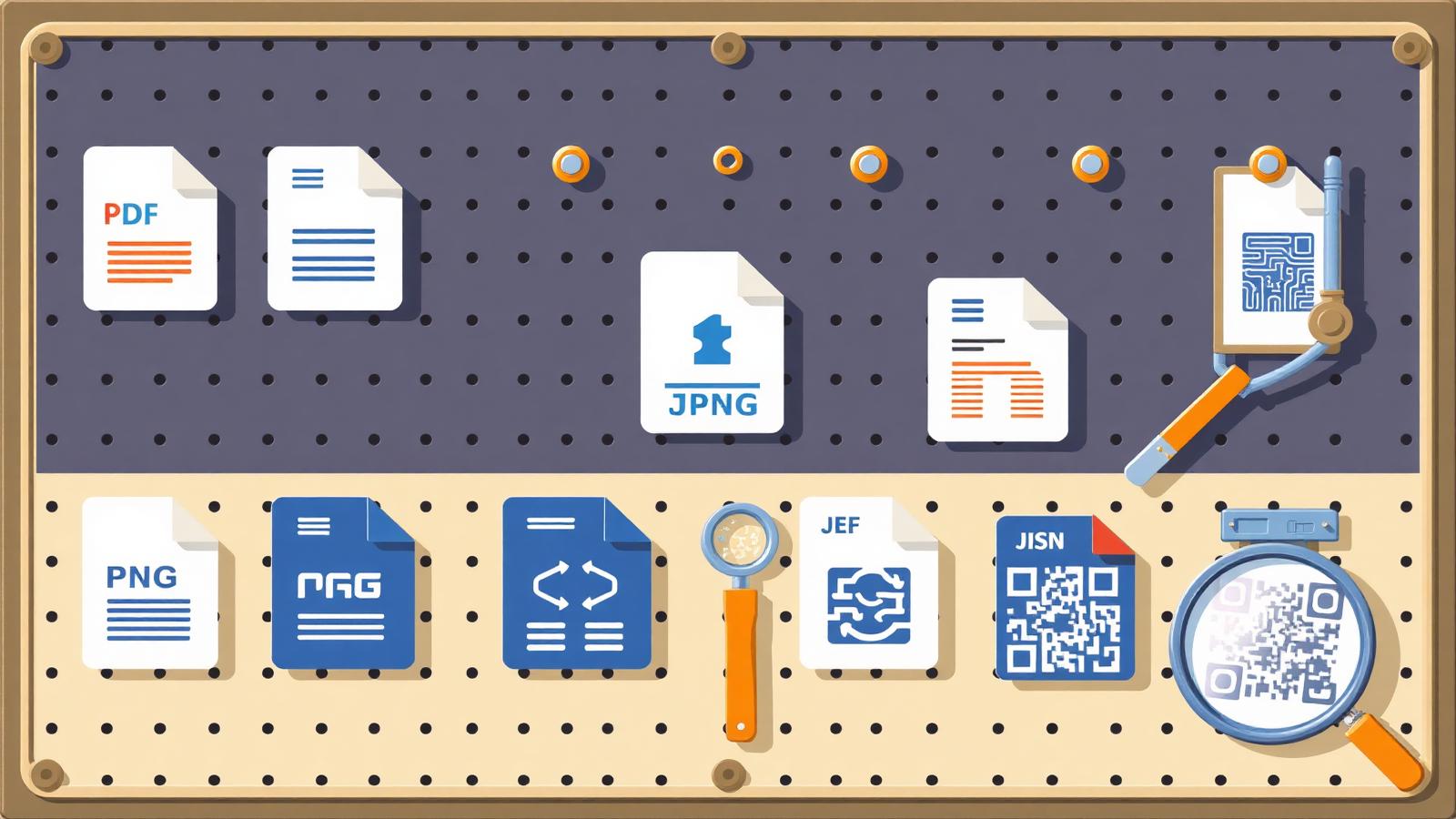
There's a very specific frustration to needing a file in a different format. You have a JPG the client wants as a PNG. A voice memo in M4A that the transcription service only accepts as MP3. A PDF quote you need to edit as Word. A CSV export from one tool that the next tool only reads as JSON. Individually, none of these are hard. Collectively, they eat afternoons.
The good news: in 2026 you can do essentially all of it in your browser, for free, without an account. This roundup covers the ten conversions that come up most often, links straight to a working tool for each, and explains how to pick the right approach when there's more than one way.
Why browser-based tools beat installers and SaaS
Three reasons matter, in this order:
- Privacy. A client-side tool processes your file inside the browser tab. It never touches a server, which means it can't leak, be indexed, or get subpoenaed. For contracts, health records, financials or anything with someone else's name on it, that's the setting that actually matters.
- Speed. No round-trip to a server means no queue, no rate limit, and no waiting for a worker to spin up. A 2 MB image converts in a fraction of a second — the network was always the slow part.
- No lock-in. No account, no trial expiration, no email captured for a re-marketing sequence. You do the thing, you close the tab, you move on.
Modern browsers ship with an astonishing amount of horsepower — WebAssembly, the Canvas API, the File System Access API. Tools like Tesseract.js, pdf-lib and ffmpeg.wasm are essentially the same engines that used to require a native install, now running inside the tab.
The ten conversions worth bookmarking
1. PDF ↔ Word
The single most-requested conversion on Earth. You get a PDF quote and need to edit the terms; someone sends a Word draft and you need to circulate a locked-down PDF. PDF ↔ Word handles both directions in-browser. Text and paragraph structure are preserved; heavily-designed layouts may reflow, which is expected for any PDF-to-Word conversion.
2. Image format conversion (JPG ↔ PNG ↔ WEBP)
Different tools want different formats. WordPress prefers WEBP for performance, some legacy printers want TIFF-style PNG, most email clients still handle JPG best. Image Converter switches between JPG, PNG and WEBP with quality controls — batch a whole folder at once and it delivers a ZIP.
3. PDF pages to JPG images
When someone needs to embed a specific page of a PDF into a slide deck or a CMS. PDF to JPG renders every page as a high-resolution JPG. One page downloads directly; multiple pages come in a ZIP.
4. Images bundled into a single PDF
The reverse — you've scanned three receipts to your phone gallery and the finance team needs "one PDF, please." Image to PDF stitches JPG, PNG and WEBP into one document, in the order you drop them.
5. PDF and image compression
Not strictly a format conversion, but the second half of most conversion jobs. A 40 MB PDF becomes emailable via Compress PDF; a 12 MP camera photo becomes web-friendly via Compress Image. Both have lossy presets that are almost always the right choice for anything you're going to upload or email.
6. Audio and video conversion
Voice memos in M4A that need to be MP3. Screen recordings in MOV that need to be MP4. Podcast masters in WAV that need to be MP3. Audio / Video Converter runs ffmpeg compiled to WebAssembly directly in your browser. The library is ~30 MB on first load, then cached; big files take real time (that's ffmpeg, not us).
7. Image or PDF → editable text (OCR)
Photos of a whiteboard, a scanned invoice, a screenshot of a spec — anything where the text is trapped inside pixels. OCR runs Tesseract in your browser, pulls the text out, and lets you copy it or download a .txt file. Multi-page PDFs are rasterized page by page.
8. CSV ↔ JSON
Every analyst has been here. Marketing exports a CSV; the API you need to hit takes JSON. Or the reverse — an API dump you'd like to open in a spreadsheet. CSV ↔ JSON handles both directions with a click and works on files well into the tens of MB.
9. JPG/PNG → transparent PNG (remove background)
A conversion that used to require Photoshop and a steady hand with the pen tool. Remove Background runs an ONNX segmentation model in your browser and returns a clean transparent PNG. First run downloads the model (~40 MB); after that it's instant.
10. Text or URL → QR code
A stealth favourite. Menus, event check-ins, quick wifi sharing at a coworking desk. QR Code Generator turns any string into a downloadable PNG with adjustable error-correction. Pin it to a poster; toss it in a slide.
How to pick the right tool for each job
A quick mental checklist that saves time:
- What's the source and what's the target? Write it down as source→target (JPG→PNG, PDF→DOCX, MP4→MP3). Most of the confusion is picking the wrong conversion in the first place.
- Is the content the pixels or the meaning? A scanned contract's pixels are the wrong thing to preserve — you want the words. Use OCR before conversion. A product photo's pixels are the whole point — use image conversion, not OCR.
- What size is the source file? Under 20 MB is comfortable for every browser-based tool. 100+ MB (long videos, huge design PDFs) will take a while and may need to be done in chunks.
- Is it sensitive? If yes, insist on client-side. All the tools listed above run locally — nothing is uploaded.
The bigger picture
The interesting shift in 2026 isn't that these tools exist — most have for a decade. It's that the browser can now run them without a server round-trip. That flips the trust model. A file conversion tool no longer requires you to trust the operator with your file; it just requires you to trust the browser you were already using.
That's why every tool in this roundup — and every other tool on EasyFileMagic — is free, sign-up-free, and works offline after first load. The engine is in the tab. Bookmark the ones you use, and you'll never install another one-off file converter again.