
July 24, 2026 · 6 min read
HEIC Photos Won't Open on Windows or Android? Here's the Fix
Why iPhones save photos as HEIC, what makes it a compatibility headache on Windows and Android, and the fastest ways to convert HEIC to JPG or PNG without installing anything.
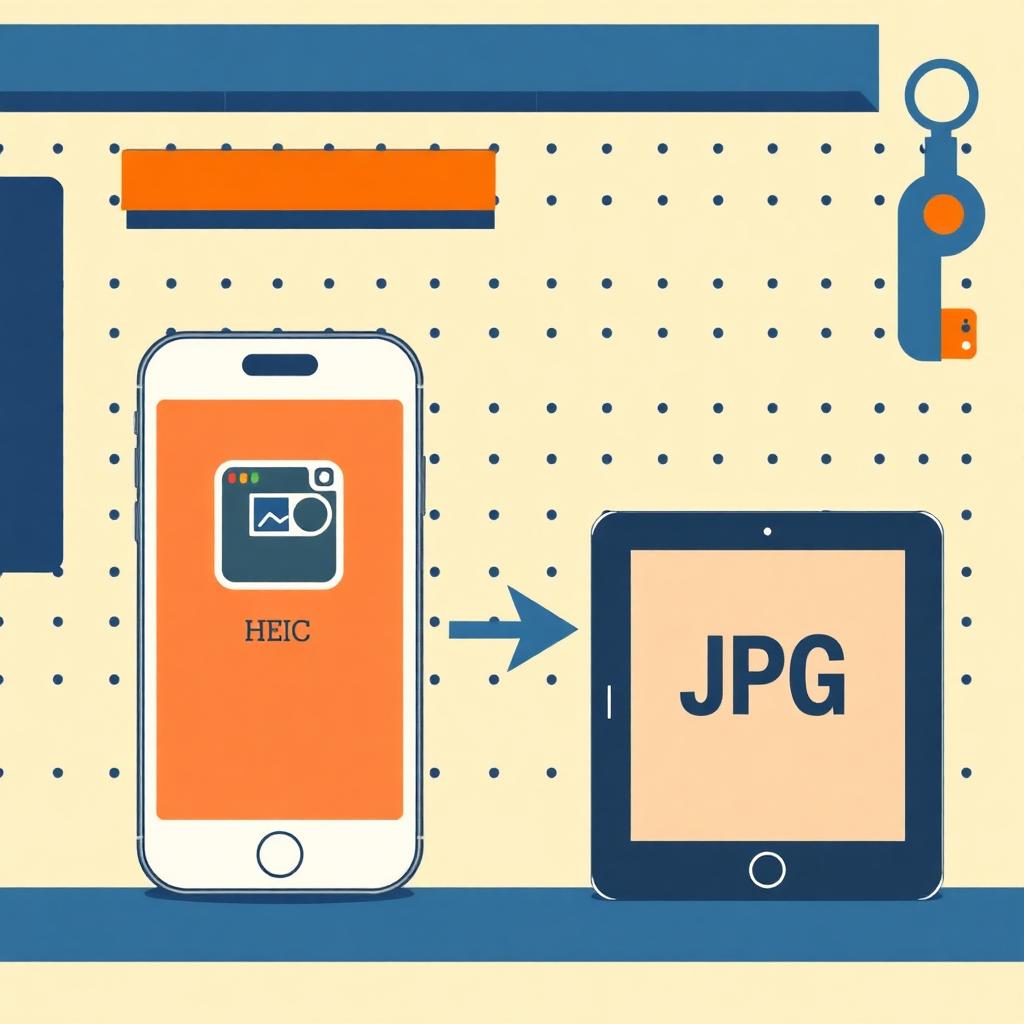
Someone AirDrops you a photo from their iPhone. You email it to yourself, or drop it into a Windows folder, and get a message like "Windows can't open this file" or "The photo could not be displayed." The file has a .heic or .heif extension you've never seen before. Nothing is broken — this is HEIC being HEIC, and it's a five-second fix.
Why iPhones use HEIC in the first place
HEIC stands for High Efficiency Image Coding. It's the file wrapper for a modern image codec (HEVC) that produces roughly half the file size of JPG at the same visual quality. Apple switched to it as the iPhone default in iOS 11 (2017) because iPhone photos were getting big — a 12 MP photo is a lot of data, and doubling storage headroom for free is a good deal.
The catch: the compression technology behind HEIC is covered by patents that make it awkward for open-source tools and non-Apple operating systems to support out of the box. Windows added HEIC support behind a paid codec extension. Android added it in version 10 for viewing but not always for sharing. Web browsers still don't render HEIC inline. So a file that's completely native on an iPhone becomes a compatibility puzzle everywhere else.
The fastest fix: convert to JPG
Drop your HEIC files into HEIC to JPG and you get JPGs (or PNGs) back in a couple of seconds. Batch it — drop a whole folder of HEICs at once and it'll bundle the results into a ZIP. Everything runs in your browser via WebAssembly, no server upload, no account.
Why JPG rather than something newer? Because JPG opens absolutely everywhere. If you're converting to fix a compatibility issue, you want the format with the widest compatibility — that's JPG, still, in 2026. If you're archiving photos and don't need to share them, WEBP is a better choice (smaller and modern), but for the "send it to my mum's Windows laptop" case, JPG is right.
Make future iPhone photos save as JPG
If you send photos to non-Apple devices often, change the iPhone setting so the camera saves JPG by default:
- Open Settings on the iPhone.
- Tap Camera → Formats.
- Switch from High Efficiency to Most Compatible.
New photos will save as JPG. Old photos on the phone stay HEIC unless you convert them. There's a trade-off — your photos will take about twice the storage — but for many people the compatibility is worth it.
Alternatively, keep the High Efficiency setting and rely on iOS to auto-convert when you share. iOS usually converts HEIC to JPG automatically when you email or message a photo to a non-Apple destination. AirDrop between Apple devices keeps HEIC; email attachments to Windows friends convert to JPG. When it works, it's invisible. When it doesn't, you're back to the manual fix.
The Windows-only workaround
If you regularly receive HEIC and stay on Windows, Microsoft's HEIF Image Extensions plugin (free from the Microsoft Store) lets File Explorer thumbnail and open HEIC files. It works, and once installed you'll basically forget HEIC exists. Note that the HEVC video codec is a separate paid extension, so HEIC videos are a different problem.
For occasional HEIC files, though, browser conversion is faster than installing a Windows extension. Especially if the file is on a device you don't control.
Android and HEIC
Android 10+ can display HEIC natively, so viewing usually works. Sharing is patchier — some apps convert automatically, some don't. The universal answer is the same: drop the file into a browser converter and send JPG onwards. Works on Android's browser too, since the whole thing runs client-side.
Does converting HEIC to JPG lose quality?
Yes, but by less than you'd think. HEIC's compression is more efficient than JPG's, so re-encoding as JPG at high quality (say, 90+) gives you a slightly larger file with visually indistinguishable results. At default quality settings, the difference is usually invisible outside of very specific test conditions (large flat gradients, extreme close-ups).
For photos you care about — wedding shots, portfolio work — export at JPG quality 95 or higher for maximum fidelity. For everyday sharing, default settings are fine. Either way, if the resulting JPG is too big, run it through Compress Image to bring it back down.
The pattern for large exports
If you've just returned from a trip with a few hundred HEICs to share:
- Export the HEICs from Photos (or copy them off the phone).
- Drop the whole set into HEIC to JPG; download the ZIP.
- Optional: resize/compress with Compress Image if you plan to email them.
- Bundle into a single deliverable — email the ZIP, or if you want a single document, bundle into a PDF via Image to PDF.
That's basically the whole workflow. HEIC isn't a bad format — it's just a format that hasn't reached universal support yet. Convert as needed, and consider changing your iPhone setting if you're doing it more than once a month.
Frequently asked questions
- Why does my iPhone save photos as HEIC instead of JPG?
- HEIC is Apple's default because it produces roughly half-size files at the same visual quality as JPG. You can change this in Settings → Camera → Formats → Most Compatible if you want new photos to save as JPG instead.
- Can Windows open HEIC files?
- Not by default. Windows needs the HEIF Image Extensions from the Microsoft Store (free) to open HEIC directly. Alternatively, convert the file to JPG using a browser-based tool — no install required.
- Does converting HEIC to JPG lose quality?
- There's a small quality loss on re-encoding, but at JPG quality 90 or higher the difference is visually imperceptible on typical photos. For maximum fidelity, use quality 95+.
- Are HEIC and HEIF the same thing?
- Effectively yes. HEIF is the file format (High Efficiency Image File Format), HEIC is the specific variant Apple uses (HEIF with HEVC-compressed images). File extensions .heic and .heif are used interchangeably.